Zapier, HubSpot, Salesforce Sync: Connect Your AI Receptionist to Your CRM
You set up an AI receptionist so no burst-pipe call at 11pm goes to voicemail. Good. But if that lead sits in a dashboard nobody checks until morning, you have only solved half the problem. A Zapier, HubSpot, Salesforce sync that handles CRM sync after-hours leads moves every after-hours lead from the call straight into your CRM, tagged, scored, and ready for follow-up before you finish your first coffee. This guide walks you through the setup step by step, written for Austin trades who would rather be on site than fiddling with software.
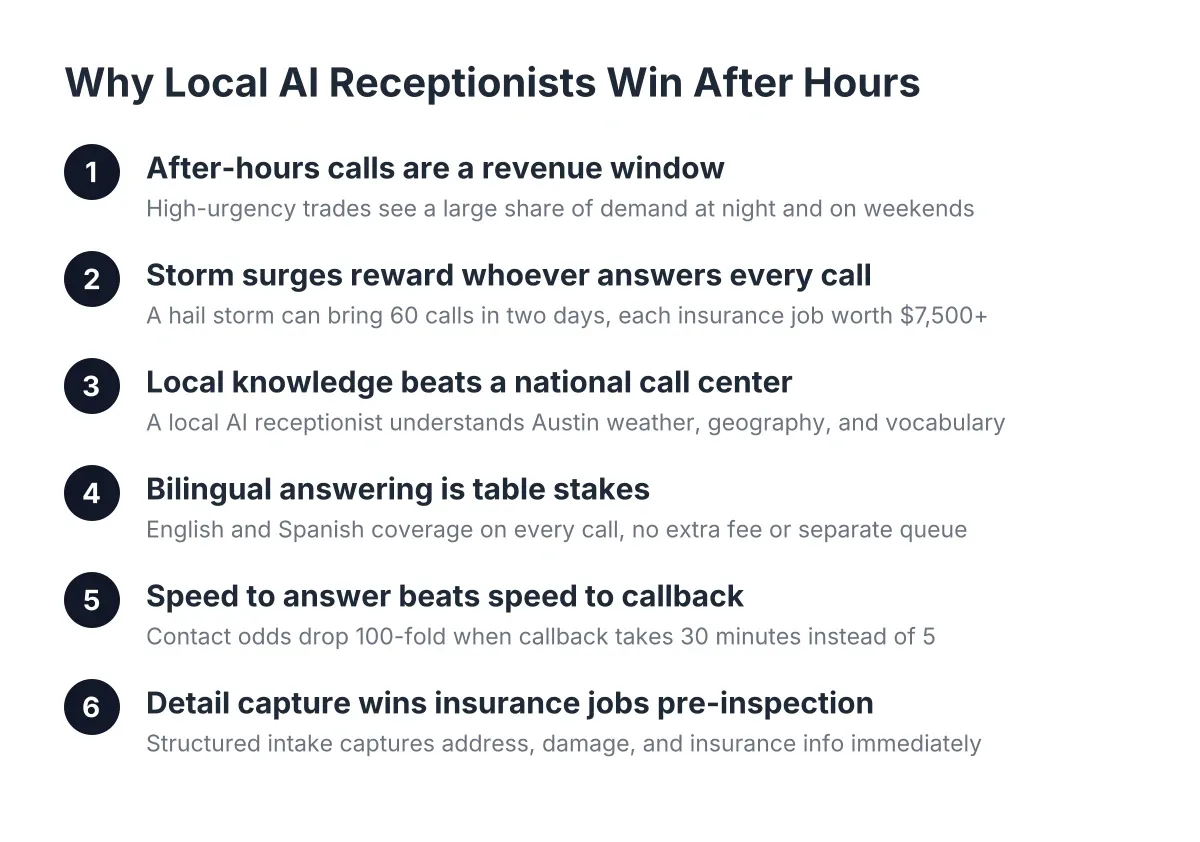
Here is the payoff for doing this right. According to MIT Sloan School of Management / InsideSales.com, the odds of contacting a lead drop 100-fold, and the odds of qualifying that lead drop 21-fold, when the callback happens at 30 minutes instead of within 5 minutes. Your AI receptionist answers on the first ring; the CRM sync makes sure the follow-up happens just as fast.
The whole setup takes about an hour. Most of that is deciding where you want leads to land, not wrestling with technology.
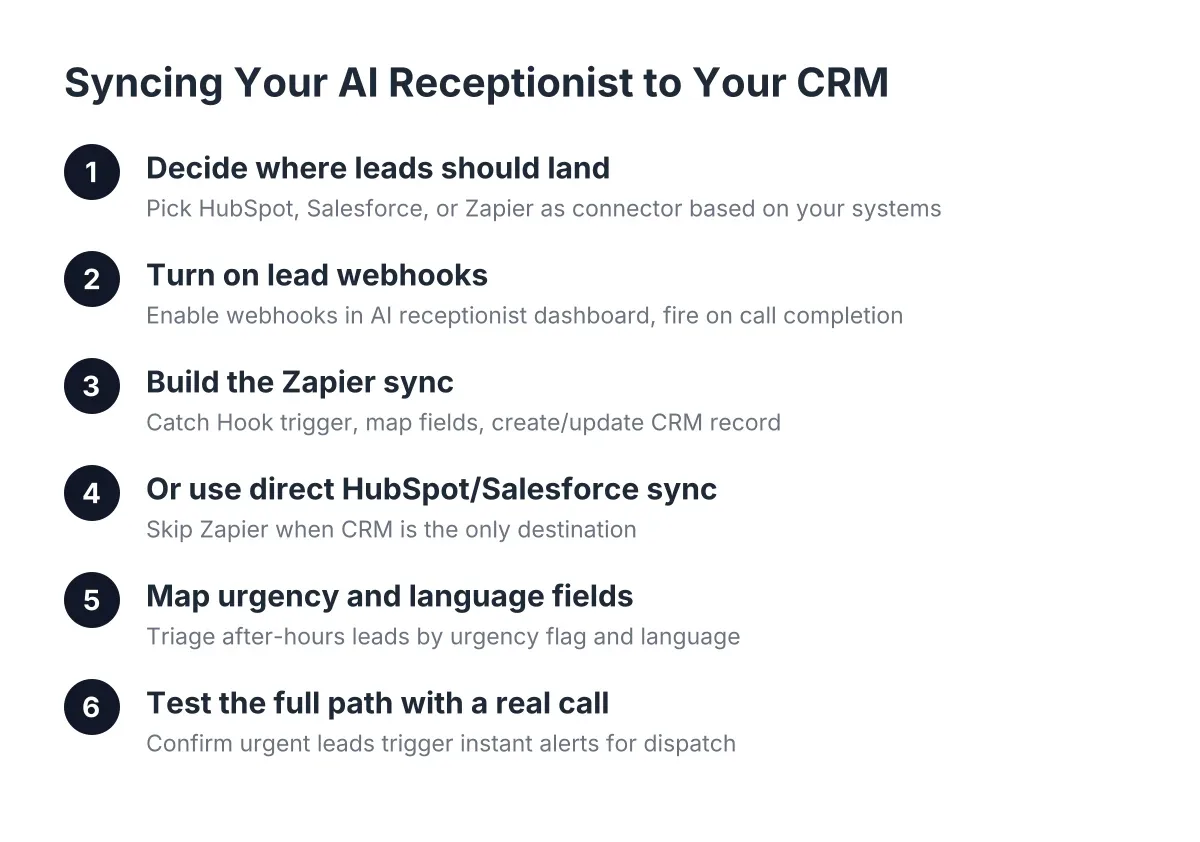
Step 1: Decide Where After-Hours Leads Should Land
Before you touch a single setting, answer one question: where does your team actually look in the morning? A sync that pushes leads into a CRM nobody opens is just a fancier voicemail.
For most Central Texas home service businesses in the 1 to 15 crew range, the answer is one of three places:
- HubSpot if you run marketing emails, seasonal maintenance reminders, or recurring pest control renewals from one platform
- Salesforce if you already track jobs and pipelines there, or a franchise or partner requires it
- Zapier as the connector if your real system of record is something else entirely, like a Google Sheet, Jobber, or a dispatch board
Suppose you run a two-truck emergency plumbing outfit in Round Rock. You use HubSpot free tier for contacts and a shared Google Sheet for the dispatch board. In that scenario, the right setup is a direct HubSpot sync for the contact record plus a Zapier zap that adds a row to the dispatch sheet for anything flagged urgent. Two destinations, one call, zero copy-paste.
Write your answer down before moving on. Every step after this one depends on it.
Step 2: Turn On Lead Webhooks in Your AI Receptionist Dashboard
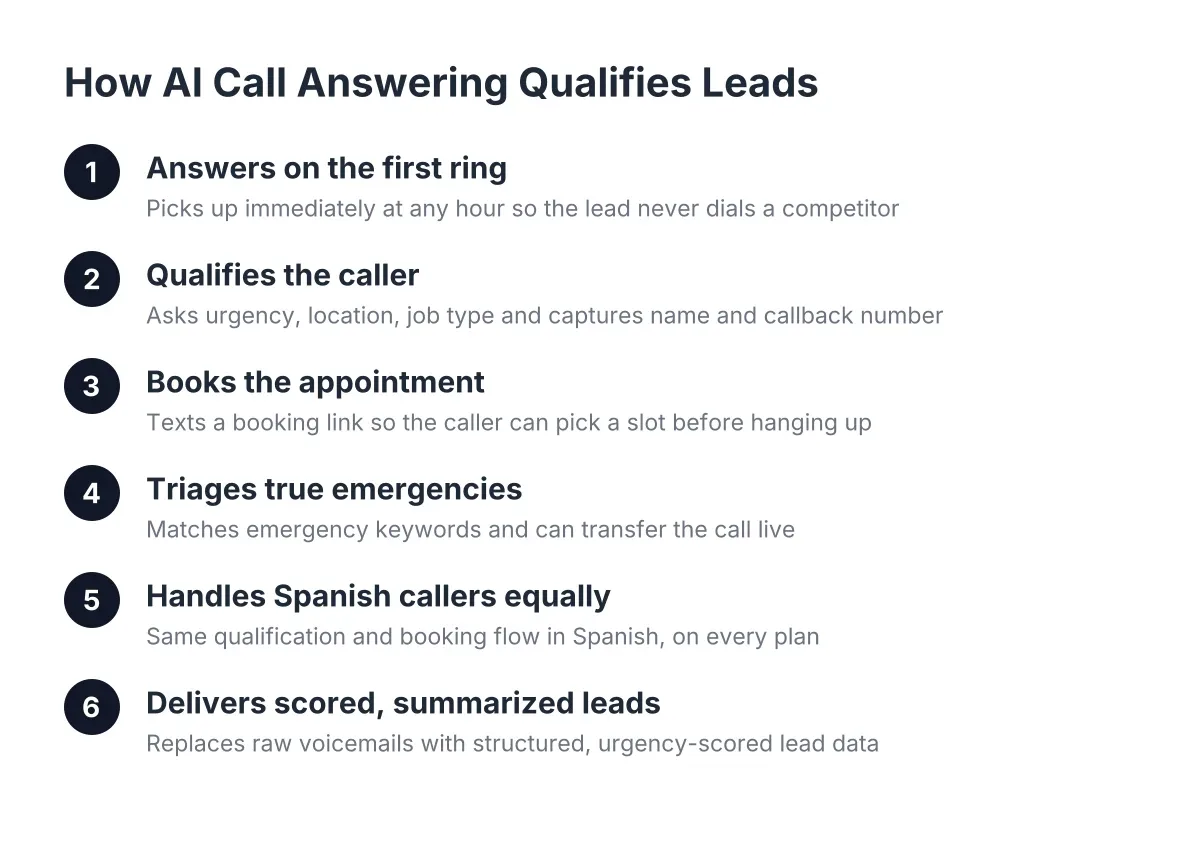
The webhook is the pipe that carries call data out of the AI receptionist and into everything else. Every answered call generates a structured lead record: caller name, phone number, address, service type, urgency level, language of the call, the AI call intelligence score, and a plain-English summary.
In your dashboard, open the integrations panel and enable lead webhooks. You will see a webhook URL field. Leave this page open; you will paste a URL here in Step 3 or 4 depending on which path you chose.
One decision matters here for emergency providers. Set the webhook to fire on call completion, not on lead qualification. A panicked caller with a flooding kitchen sometimes hangs up before answering every qualification question. You still want that partial lead, with the phone number and whatever address details the AI captured, in your CRM immediately.
Step 3: Build the Zapier HubSpot and Salesforce Sync
Building the Zapier sync means creating one zap per destination: a webhook trigger that catches the lead, followed by an action that creates or updates a record in HubSpot or Salesforce. Zapier acts as the translator, so you never write code, and the whole zap takes about 15 minutes to build.
Here is the sequence:
- In Zapier, create a new zap and choose "Webhooks by Zapier" with the "Catch Hook" trigger.
- Copy the webhook URL Zapier generates and paste it into the webhook field from Step 2.
- Have a friend call your business line and leave a test lead. Zapier will catch it and show you the raw data.
- Add an action step: "HubSpot: Create or Update Contact" or "Salesforce: Create Record" for a Lead object.
- Map the fields. Caller name to name, phone to phone, service type to a custom property, AI lead score to a custom score field, and the call summary to the notes or description field.
- Turn the zap on and run one more live test call.
For the Salesforce path, map the urgency flag to a custom checkbox or picklist field. Later you can build a Salesforce workflow that texts your on-call tech whenever that box is checked. That is how a no-cool call at 9pm in August becomes a dispatched job by 9:15 instead of a competitor's win.
If you connect both platforms, run them as two separate zaps off the same webhook rather than one chained zap. When one platform has an outage, the other still gets the lead. Each zap that syncs CRM data from after-hours leads ensures your records stay consistent even when individual services falter.
Step 4: Use the Direct HubSpot or Salesforce Sync When You Can Skip Zapier
Skip Zapier entirely when HubSpot or Salesforce is your only destination. The native CRM sync connects your AI receptionist to either platform directly, which means one less subscription, one less point of failure, and no Zapier task limits to think about during a spring booking rush.
In the integrations panel, choose HubSpot or Salesforce, authorize the connection with your CRM login, and confirm the field mapping the setup suggests. The defaults cover name, phone, email, service requested, urgency, language, lead score, and summary.
However, keep Zapier in the picture if you need branching logic. Say a Cedar Park pest control company wants recurring service inquiries routed to a HubSpot nurture list while one-time roach emergency calls go straight to the dispatch sheet. That branching is a Zapier filter step, not something a direct sync handles.
A practical rule: direct sync for the CRM, Zapier for everything downstream of it.
Step 5: Map Urgency and Language Fields—CRM Sync After-Hours Leads Triage
Field mapping for urgency and language is the step most owners rush, and it is the one that decides whether your CRM can tell a burst pipe from a sprinkler quote. Map the AI receptionist's urgency flag, service type, and call language to dedicated CRM fields, never to a free-text notes blob.
Create these custom fields in your CRM before mapping:
- Urgency level: emergency, same-day, or routine
- Call language: English or Spanish, so the right tech or office person handles the follow-up
- Service type: matched to your actual service list, not generic categories
- Lead score: the AI call intelligence number, so you can sort the morning list by value
- After-hours flag: yes or no, so you can measure exactly how much revenue your nights and weekends produce
That last field earns its keep at reporting time. Pull a monthly report filtered to after-hours leads and you will see, in dollars, what your after-hours call answering setup captures while you sleep. For seasonal businesses, watch that number spike during the first heat wave in June or the first freeze warning in January.
Step 6: Wire Urgent Leads to Instant Alerts for After-Hours Lead Dispatch
A CRM record at 11pm does not wake anyone up. For emergency trades, add one more action to your zap that handles after-hours leads with urgent status: an SMS or push notification to the on-call phone whenever the urgency field reads emergency.
In Zapier, add a filter step after the webhook trigger that only continues when urgency equals emergency. Then add an SMS action with the caller's name, address, and callback number in the message body. Pair this with live transfer for calls where the AI recognizes a true emergency, so the caller reaches a human while the CRM record writes itself in the background.
Worth acknowledging: a sync moves data, it does not make judgment calls. If your emergency criteria are complicated, say gas leaks always transfer but slow drips book for morning, spend time refining the AI receptionist's qualification script with your setup team rather than trying to solve it with zap logic.
Step 7: Test the Full Path With a Real After-Hours Call
Testing means calling your own business line after close, in both English and Spanish, and tracing each lead through the entire chain. Confirm the AI answered, the webhook fired, the CRM record appeared with every field populated, and the urgent-call text hit the on-call phone within a minute.
Run at least three test calls:
- A routine booking request in English. Verify the contact and booked appointment appear in the CRM.
- An emergency scenario in Spanish, something like a described water leak. Verify the language field, urgency flag, and instant alert all fire correctly.
- A hang-up after giving only a name and number. Verify the partial lead still lands in the CRM.
If any field arrives blank, go back to the mapping in Step 5. Nine times out of ten a missing field is a mapping mismatch, not a broken sync.
Repeat this test after any CRM change, like renaming a pipeline stage or a custom property. A renamed field can silently break a zap, and you will not notice until Monday's report looks thin.
Common Zapier, HubSpot, and Salesforce Sync Mistakes to Avoid
Most sync failures trace back to setup shortcuts, not the tools. Watch for these:
- Syncing to notes instead of fields. A call summary pasted into notes cannot be filtered, scored, or automated against.
- Ignoring duplicates. Use "create or update" actions keyed on phone number, so a recurring customer's third call enriches one record instead of creating three.
- Skipping the Spanish test call. Bilingual lead capture only pays off if the language field maps correctly and someone on your side acts on it.
- No after-hours flag. Without it, you cannot prove what nights and weekends earn, and you lose the strongest argument for the whole setup.
- One giant zap. Separate zaps per destination fail independently and are far easier to troubleshoot at 7am before you head to a job.
What a Working Sync Looks Like on a Monday Morning
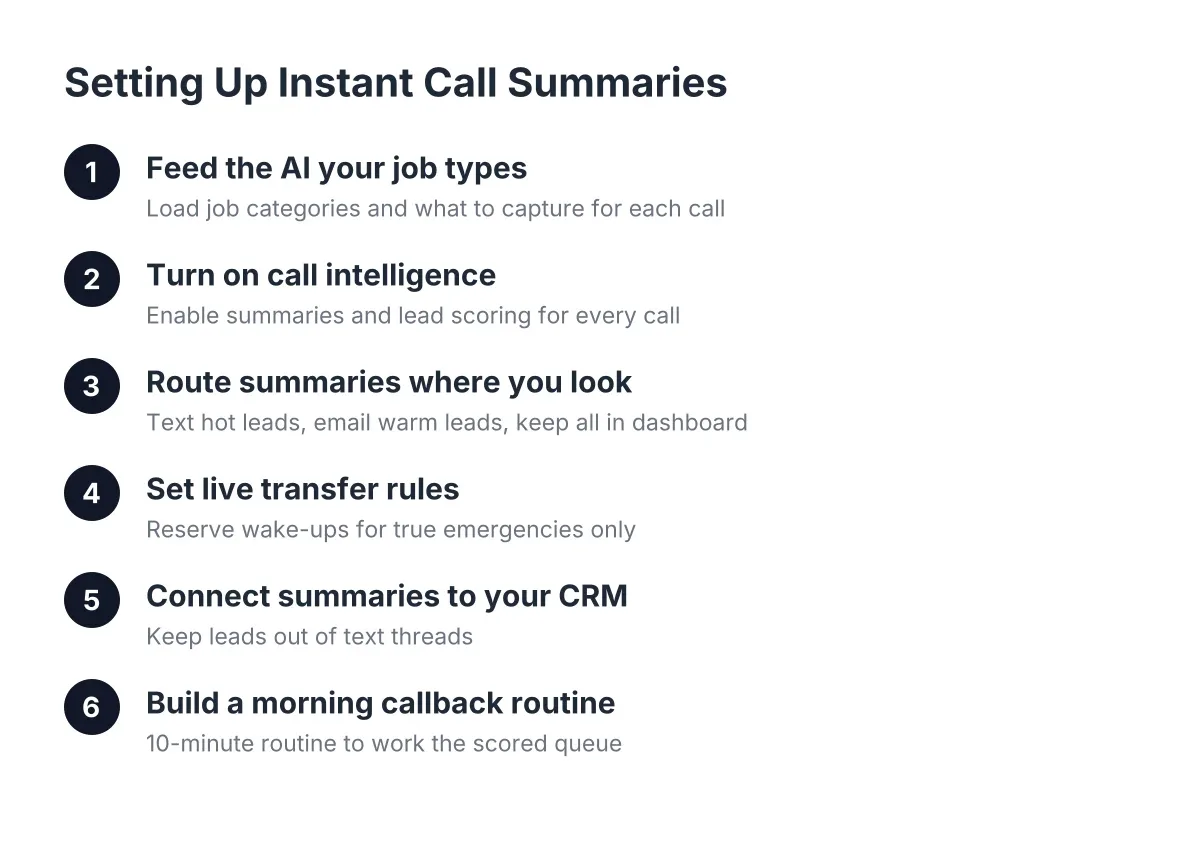
When the Zapier, HubSpot, Salesforce sync is running clean, Monday morning stops being an archaeology dig through voicemail. You open the CRM to a sorted list: every weekend call captured, scored, and tagged by urgency and service type, with emergencies already handled Saturday night through live transfer and instant alerts.
For a typical Georgetown HVAC company in July, that might mean an illustrative weekend of 11 after-hours calls: two no-cool emergencies dispatched same night, six maintenance requests booked for the week, and three leads flagged for a callback. One-click call bridging from the dashboard handles those three before 8am, well inside the window where contact odds are still on your side.
That is the whole point of connecting the pipes. The AI receptionist captures every lead; the sync makes sure nothing captured ever gets lost between the phone and the job.
If you're losing revenue to missed calls, NeverMiss ATX can help.
Prefer to talk it through? Call (512) 980-9267 — a quick call is usually the fastest way to get a straight answer for your situation.