AI Receptionist Lead Webhooks: Sync Every Call to HubSpot Instantly
You are on a roof in Pflugerville at 2pm when a hailstorm hits Round Rock. Your phone lights up with 40 calls in three hours. This guide walks through how to set up AI receptionist webhook setup so every one of those calls lands in HubSpot as a scored, structured lead before you climb down the ladder. No office manager retyping voicemails. No sticky notes. Just calls answered, leads captured, and your CRM updated in real time.
We built our AI receptionist for Central Texas trades, so this walkthrough uses the exact call flow our system runs. But the steps apply to any setup where an AI answers your phone and pushes lead data to a CRM through a webhook.
First, a quick definition. A webhook is a message one system sends to another the instant something happens. When your AI receptionist finishes a call, the webhook fires the caller's name, phone number, address, job type, urgency score, and call summary straight into HubSpot, Salesforce, Zoho, or Zapier. The whole handoff takes seconds.
Here is why that speed matters. According to MIT Sloan School of Management / InsideSales.com, the odds of qualifying a lead drop 100-fold when you call back at 30 minutes instead of within 5 minutes.
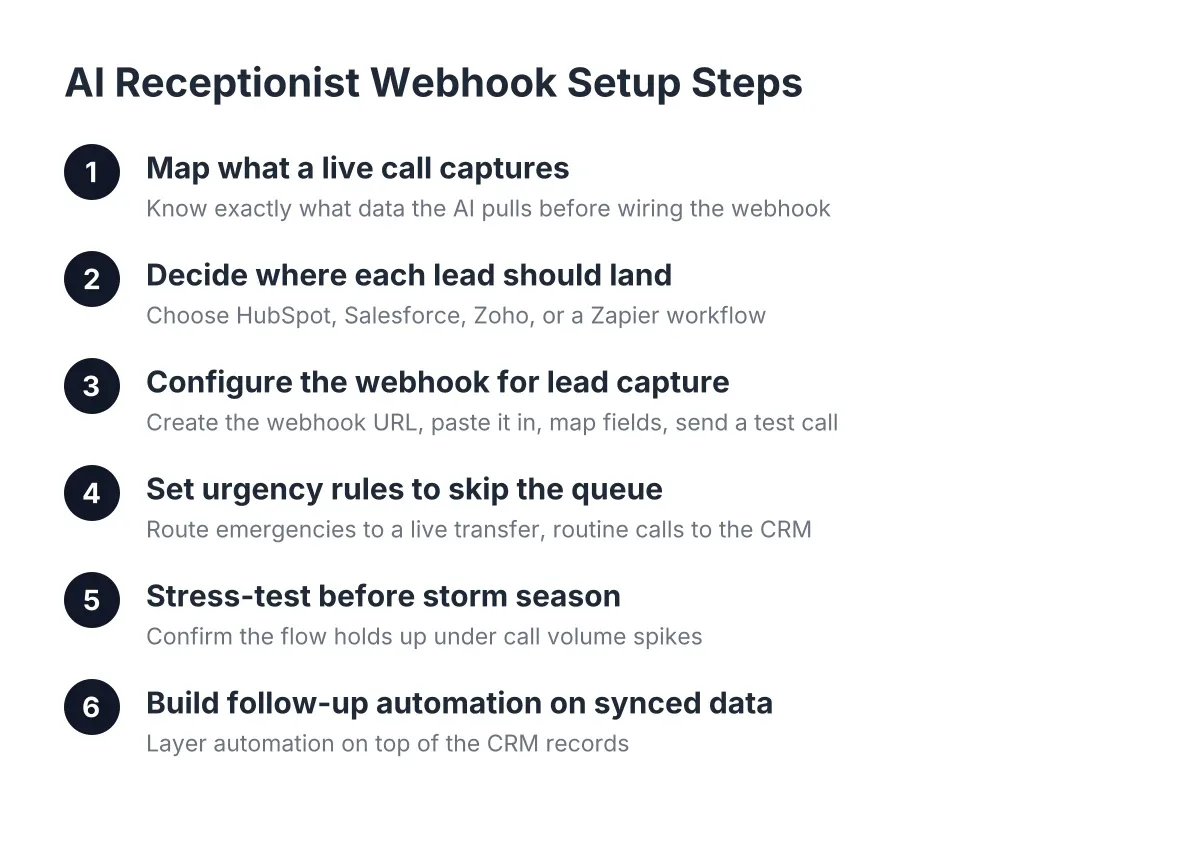
Step 1: Map What a Live Call Actually Captures
Before you touch a webhook, know exactly what data the AI pulls from a live call. Skeptical owners should demand this list up front, because the webhook can only sync what the receptionist captures.
On a live call, the AI receptionist answers on the first ring, greets the caller in English or Spanish based on how they respond, and works through a conversation, not a phone tree. A panicked caller with a burst pipe does not press 1 for plumbing. They say "water is pouring through my ceiling," and the AI recognizes the urgency, asks for the address, and confirms whether water is still flowing.
A complete capture for an emergency trade should include:
- Caller name and callback number
- Service address, confirmed street by street
- Job type and description in the caller's own words
- Urgency level (active flooding versus a slow drip)
- Language of the call
- For storm work: insurance carrier and claim status, if the caller has one
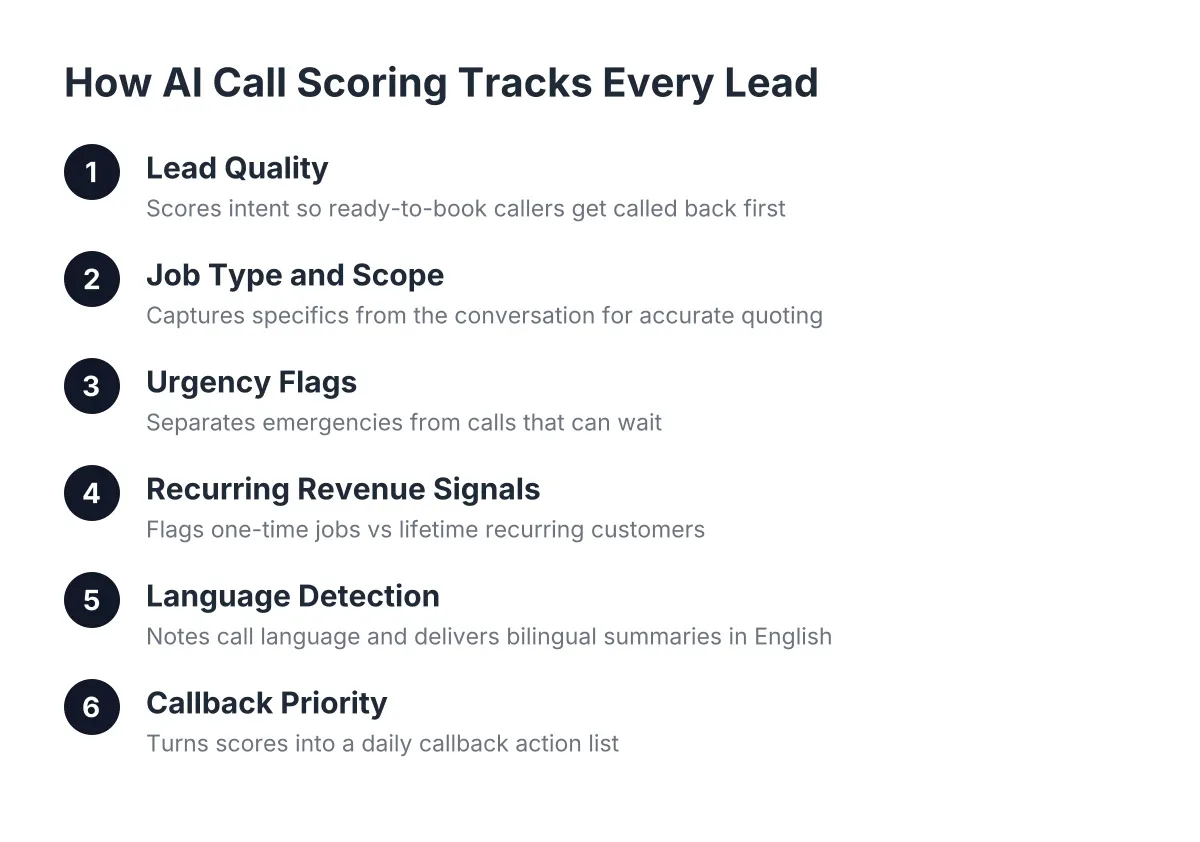
- A plain-English call summary and an AI-generated lead score
If a system cannot capture insurance intake details or distinguish a no-cool call in 95° August heat from a routine maintenance request, fix that before wiring up the webhook. Garbage in, garbage synced.
Step 2: Decide Where Each Lead Should Land
Next, pick the destination. Most Austin home service businesses we work with sync to one of four places: HubSpot, Salesforce, Zoho, or a Zapier workflow that fans out to whatever they already use.
For a small crew of 3 to 8 technicians, HubSpot's free CRM tier plus a webhook is the most common setup in 2026. The AI receptionist creates a contact, attaches the call summary as a note, and sets a deal stage based on lead score. Your office lead opens HubSpot Monday morning and sees the weekend's after-hours calls already sorted by urgency.
Larger operations running 10 to 20 techs often route through Zapier instead, because one webhook can trigger several actions at once: create the CRM record, ping the on-call tech in Slack, and add the address to a dispatch board. There is a trade-off. Zapier adds flexibility but also a monthly cost and one more system to maintain. If you only need leads in one CRM, a direct webhook is simpler and has fewer failure points.
Step 3: Configure the AI Receptionist Webhook for Lead Capture
Now connect the two systems. In practice, setup takes about 15 minutes, and you do not need a developer. Here is the sequence:
- In your CRM, create an inbound webhook URL (HubSpot calls this a webhook trigger inside Workflows; Zapier calls it a Catch Hook).
- Paste that URL into your AI receptionist dashboard under integrations.
- Map the fields: caller name to contact name, callback number to phone, job description to a note, lead score to a custom property.
- Send a test call and confirm the record appears.
Field mapping is where owners cautious about setup complexity get stuck, so keep it simple on the first pass. Sync five fields: name, phone, address, summary, and urgency. You can add insurance carrier, language, and call recording links later once the basic flow works. A good ai receptionist app will show you the exact payload it sends, so you can see the raw data before it hits your CRM. The webhook setup for capturing and routing data should be tested thoroughly before deployment.
One honest limitation: webhooks are one-directional. They push data into your CRM, but they do not pull your existing customer history back into the call in every setup. If a recurring customer calls, some systems recognize the number and some do not. Ask your provider directly how they handle repeat callers, because that recognition is what makes a recurring customer feel known instead of processed.
Step 4: Set Urgency Rules So Emergencies Skip the Queue
A webhook that treats every lead the same will fail an emergency trade. A homeowner with active flooding at 11pm cannot wait in the same pipeline as someone asking about gutter guards.
Therefore, configure two paths. Routine calls flow through the standard webhook into your CRM for next-morning follow-up. Urgent calls trigger both the webhook and a live transfer to your on-call phone. The AI qualifies first, so when the transfer connects, you already know it is a burst pipe on Parmer Lane and not a robocall. If nobody picks up the transfer, the lead still lands in HubSpot flagged urgent, with a text alert to your phone as backup.
This dual path answers the biggest objection we hear from emergency providers: the fear that AI will not recognize a true emergency. Test it yourself before you commit. Call the system and describe a flooded kitchen, then call back and ask about a quote for next month. A capable receptionist scores those two calls differently, and the webhook payload proves it.
Step 5: Stress-Test the Webhook Before Storm Season
Do not wait for the first hailstorm to find out whether your integration holds. Storm and event-driven businesses in Central Texas see call volume spike 10 to 20 times normal in the 48 to 72 hours after a weather event. Every one of those calls fires a webhook, and your CRM needs to absorb them without dropping records.
Run this test in a quiet week:
- Place five overlapping calls, in English and Spanish, and confirm all five records land in HubSpot with correct fields.
- Check the timestamps. Records should appear within 60 seconds of each call ending.
- Verify Spanish-language calls sync with summaries you can read; the summary should arrive in English even when the call was in Spanish.
- Confirm duplicate handling: two calls from the same number should update one contact, not create two.
In addition, decide who watches the pipeline during a surge. The webhook removes data entry, but a human still needs to work the leads. After a Georgetown hail event, a three-person roofing office can realistically handle follow-up on 100 or more webhook-delivered leads in a day, because the qualification work is already done. The same office drowning in voicemails handles maybe 30.
Step 6: Build Follow-Up Automation on Top of the Synced Data
Once leads flow in cleanly, put the data to work. This is where AI receptionist lead webhooks pay for themselves, because structured data triggers automation that a voicemail never could.
Start with three automations in HubSpot or your CRM of choice:
- Instant callback task. When a lead scores above your urgency threshold, create a task for the on-call tech within one minute. Remember the MIT Sloan finding: minutes decide whether you contact the lead at all.
- One-click call bridging. From the dashboard or CRM record, tap once to call the lead back. No copying numbers while driving between sites.
- Follow-on job tagging. For water emergencies, tag the record for restoration follow-up. The burst pipe is tonight's job; the water damage remediation is next week's, and it is often the bigger ticket.
Worth stating plainly: AI phone answering handles the capture and the sync, but the relationship still runs through you. According to Five9, 75% of consumers prefer talking to a real human for support. The webhook's job is to get you to that human conversation faster, with the address and the problem already in hand, not to stand in for it.
Step 7: Review the Data Weekly and Tighten the Flow
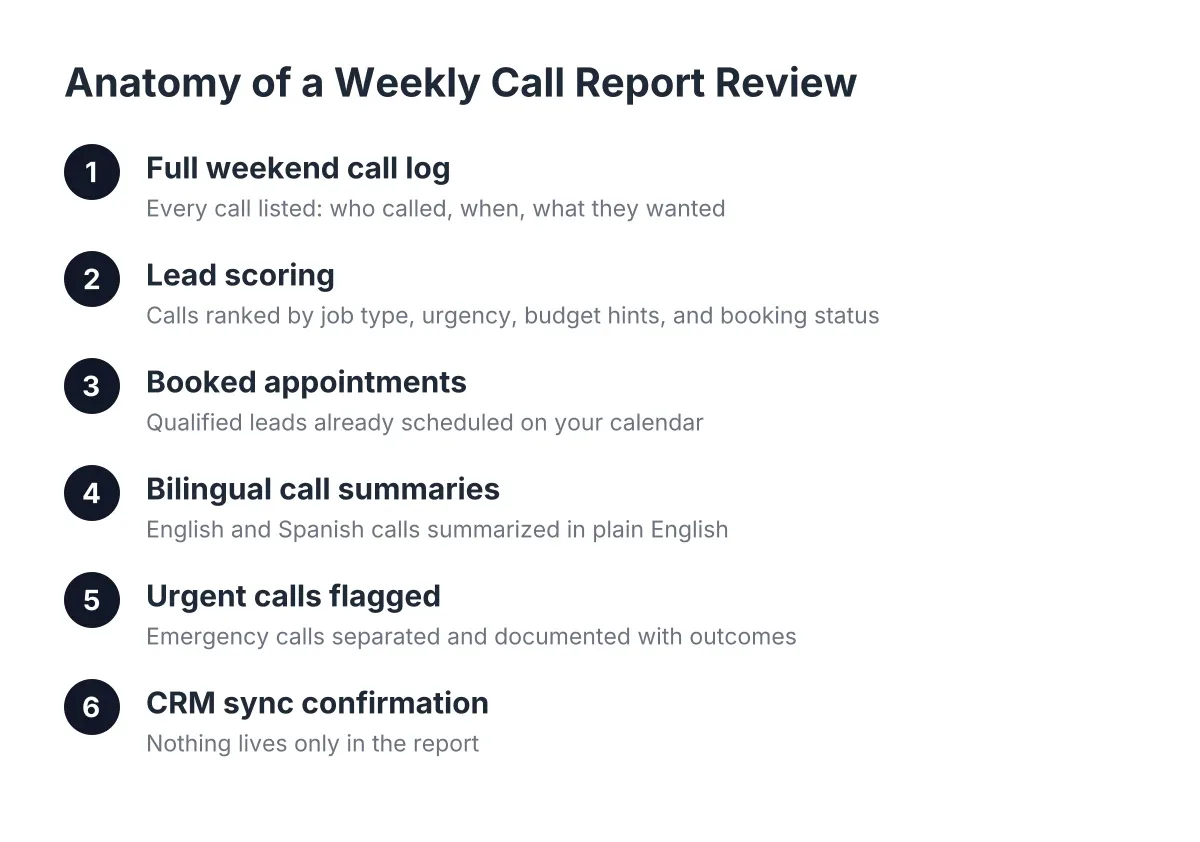
Finally, treat the webhook as a living system. Every Monday, review what synced: how many calls came in after-hours, how many were Spanish-language, how many urgent leads got a callback within five minutes, and how many booked. Our own system ships this as a Weekly Monday Morning Report, but you can build the equivalent from any CRM dashboard.
Look for two failure patterns. First, fields arriving blank, which usually means the AI is not asking for that detail consistently and the prompt needs adjusting. Second, urgent leads sitting untouched, which is a people problem, not a technology problem, and needs an on-call schedule fix.
Adoption is still early enough that this setup is a real edge. According to the National Federation of Independent Business (NFIB), only 24% of small employers currently use AI tools for business activity. In a market like Austin roofing or emergency plumbing, being in that 24% during a storm week means you answer while competitors' phones ring to voicemail.
How to Evaluate Providers on Webhook Capability
If you are comparing options for the best AI receptionist for small business use, judge the webhook layer with the same scrutiny as the voice quality. Ask each provider these questions before signing anything:
- Which CRMs connect directly, and which require Zapier as middleware?
- Can I see the exact webhook payload from a test call?
- How are simultaneous calls handled during a storm surge, and is there a cap?
- Does urgency scoring come through as a field I can automate against?
- Do Spanish-language calls sync with the same field completeness as English calls?
- What happens to the lead if the webhook fails: is there a retry, and do I get alerted?
A national answering service may check the CRM box on a features page but route your Cedar Park caller to an agent who has never heard of MoPac. A local system built for Central Texas trades should know the difference between a Leander address and a Liberty Hill one, and its webhook should carry that local context into your CRM intact.
The fastest way to settle your skepticism is the same advice we give every owner: call the system yourself. Describe a flooding emergency, switch to Spanish mid-call, give a fake address on a real street, and try to stump it. Then open the CRM and look at what the AI receptionist lead webhooks delivered. The payload from that one test call will tell you more than any sales page.
If you're losing revenue to missed calls, NeverMiss ATX can help.
Prefer to talk it through? Call (512) 980-9267 — a quick call is usually the fastest way to get a straight answer for your situation.